Learn to code: build Snake
Never written code before? Start here. Set up your Mac or PC from nothing, then write a Snake game step by step and play it on your phone.
What you'll learn
- Using your Mac or PC to code: the terminal, files and folders.
- Setting up the tools: Node.js, a code editor, Codetik and an API key.
- Editing code: opening a project, changing a file, saving, seeing the result.
- Variables: names for numbers and words.
- Functions: small sets of instructions with a name.
- Lists and loops: the snake is a list of squares.
- Conditions: what happens when the snake hits a wall or eats.
- Events: what happens when a finger touches the screen.
- A game loop: making the game move, one step at a time.
What you need
- A Mac or a Windows PC. A phone or a tablet cannot do this.
- A phone with the Codetik app.
- The internet, and about an afternoon. Everything is free.
Some steps are different on a Mac and on Windows. Pick your computer:
Part 1: Set up your computer
You only do this part once.
1. Install Node.js
Node.js runs the tools you are about to use.
- Open nodejs.org/en/download.
- Download the macOS Installer (
.pkg), further down the page. - Open the file you downloaded and click Continue until it is done. It asks for the Mac's password.
- Open nodejs.org/en/download.
- Download the Windows Installer (
.msi), further down the page. - Open the file you downloaded and click Next until it is done. If Windows asks to allow changes, choose Yes.
2. Install a code editor
A code editor is the program you write code in. We use Visual Studio Code, or VS Code. It is free.
- Open code.visualstudio.com/download and click the Mac download.
- Open the file you downloaded and drag Visual Studio Code into Applications.
- Open code.visualstudio.com/download and click the Windows download.
- Open the file you downloaded and click Next until it is done. Leave Add to PATH ticked.
3. Open the terminal
The terminal is a window where you type commands instead of clicking.
Press Cmd+Space, type Terminal and press Return.
Click Start, type Command Prompt and press Enter.
On a new PC, PowerShell will not run these tools.
You type a command and press Return. On this page a command looks like this:
$ node -vType what comes after the $, never the $ itself. The button in the corner of the box copies the command, and Cmd+V pastes it.
Try it now. The answer is a number like v26.13.1. If the terminal cannot find node, close it, open it again and try once more.
4. Install Codetik
$ npm i -g @codetik/cliThis installs codetik, the command that makes your game, runs it and publishes it.
Run it again with sudo in front. It asks for the Mac's password, and shows nothing while you type it.
$ sudo npm i -g @codetik/cliCheck that it worked:
$ codetik --versionYou should see a number like 0.3.2.
5. Get the app and your key
codetik needs to know who you are. You tell it with an API key: a long password that the Codetik app makes for you.
- Install the app and sign up
Get Codetik from the App Store or Google Play. Sign up and pick a username.
- Open the API keys screen
Go to the Account tab, tap the gear, then API keys.
- Make a key
Tap New key, type a name like
Laptopand confirm. - Keep the key in front of you
The key starts with
ctk_. It is shown only once, so keep this screen open.
6. Sign in
In the terminal:
$ codetik loginIn the app, tap Copy and send the key to yourself. Paste it in the terminal and press Return. The terminal shows a dot for each character, never the key itself.
You should see Signed in as and your username.
7. Create your project
$ codetik new snakeThis makes a folder called snake with everything your game needs. It asks two questions: press Return for both.
The folder is in your home folder, /Users/your-name. Go into it, and add Pixi, the drawing tools your game will use later:
$ cd snake$ codetik add pixi.jscd means "go into this folder".
8. Open your code
Code is a list of instructions for the computer, written as plain text. Your program is the folder of text files that codetik new made. Open it in VS Code:
$ open -a "Visual Studio Code" .$ code .VS Code asks if you trust the authors. You made the files, so click Yes.
The list on the left shows every file. You only need one, src/main.ts: click src, then main.ts.
9. Start the preview
In the terminal:
$ codetik dev --openA window opens with a phone in it, showing "Hello from your tik!". A tik is what Codetik calls a small app like your game. That phone is running your program. Leave the command running: the phone updates every time you save.
To stop it, click the terminal and press Ctrl+C (Ctrl, not Cmd).
10. Make your first change
In src/main.ts, find this line:
root.textContent = 'Hello from your tik!';Change the words between the quotes and save with Cmd+S. The phone shows your words.
- A dot on the file's tab means you have not saved yet.
- A red wavy line means the editor found a mistake.
- Cmd+Z undoes your last change.
If something goes wrong
- The terminal cannot find
node,npmorcodetik. Close the terminal and open it again. If that does not help, install that tool again. - "No tik.yaml". The terminal is not in your project. Run
cd snake. - The key was rejected. Run
codetik loginagain. - The phone is blank or shows an error. There is a typo in the code. Undo until it works.
permission deniedorEACCES. Putsudoin front of the command, as in step 4.
- "running scripts is disabled on this system". That is PowerShell. Open Command Prompt.
codeis not recognized. Open Command Prompt again, runcd snakeand try once more.
Coming back another day
- Open the terminal and run:
$ cd snake$ codetik dev --open- Open VS Code and choose File, Open Recent,
snake.
Part 2: Your first code
Before the game, five tiny programs. Each one shows something on the phone.
Some of the code only sets things up. Copy it and move on. This page tells you which parts matter: those are the ones that teach you to program.
1. Show some words
In src/main.ts, select everything with Cmd+A and delete it. Write this and save:
const root = document.getElementById('app')!;root.textContent = 'Hello! I am learning to code.';- The first line finds the phone's screen and calls it
root. Copy it as it is. - The second line puts words on the screen. Words always go between quotes.
You should see the words on the phone.
Try it. Write your own words.
2. Do a sum
Change the second line:
const root = document.getElementById('app')!;root.textContent = 'I have ' + (2 + 3) + ' apples';- Numbers have no quotes.
+adds numbers. It also sticks words and numbers together.- The round brackets mean: do this sum first.
You should see "I have 5 apples".
Try it. Change the sum to 10 - 4, then 6 * 7, then 8 / 2. * means times and / means divided by.
3. Give things a name
Change your file to this:
const root = document.getElementById('app')!; let red = 2;let green = 3; root.textContent = 'I have ' + (red + green) + ' apples';let red = 2; makes a variable: a name for something. Think of a box with a label on it. The box called red holds 2. The last line uses the names instead of the numbers.
You should see "I have 5 apples", as before.
Try it. Change 2 to 10.
4. Write a function
Change your file to this:
const root = document.getElementById('app')!; let red = 2;let green = 3; function countApples() { return red + green;} root.textContent = 'I have ' + countApples() + ' apples';- A function is a set of instructions with a name. This one is called
countApples. - The instructions go between the curly brackets. They run when you call the function, by writing its name with round brackets:
countApples(). returngives the answer back.
You should see "I have 5 apples" again.
Try it. Change red + green to red * green.
5. Make a choice
Change the last line to these:
const root = document.getElementById('app')!; let red = 2;let green = 3; function countApples() { return red + green;} if (countApples() > 4) { root.textContent = 'That is a lot of apples';} else { root.textContent = 'I need more apples';}if (...)asks a question. When the answer is yes, the code in the first curly brackets runs. When it is no, the code afterelseruns.>means "bigger than".
You should see "That is a lot of apples".
Try it. Change 2 to 1.
That is enough to start a game.
Part 3: Build Snake
Words are easy to put on a screen. A game needs more: shapes, colours and things that move.
PixiJS, or Pixi, is a set of drawing tools. Other people wrote it and share it for free. You tell Pixi what to draw, and it draws it very fast. You added it to your project in Part 1.
You will build Snake in sixteen small steps, and check the phone after each one.
- Lines with a coloured background in a code box are new or changed.
- The whole file after this step shows the full file. If your game stops working, copy it over yours.
- Every letter matters in code. Copy with the button in the corner of the box, and save after every change.
Step 1: A square on the screen
In src/main.ts, select everything and delete it. Write this and save:
import { Application, Graphics } from 'pixi.js'; const app = new Application();await app.init({ resizeTo: window, background: '#0b1026', resolution: Math.min(window.devicePixelRatio, 2), autoDensity: true, antialias: false, preference: 'webgl',});document.body.replaceChildren(app.canvas);app.canvas.style.display = 'block'; const board = new Graphics();app.stage.addChild(board); board.rect(100, 200, 40, 40).fill('#00f5ff');Most of this is set-up code that switches Pixi on. Copy it as it is. Only the last line matters now: it draws a square.
board.rect(100, 200, 40, 40): 100 dots from the left, 200 from the top, 40 wide and 40 tall. The dots of a screen are called pixels..fill('#00f5ff')colours it light blue.
You should see a light blue square on a dark screen.
Try it. Change 100 to 250. Change both 40s to 80. Change the colour to '#ff4d6d'.
Step 2: Give the numbers names
Replace the last line with these:
let x = 100;let y = 200; board.rect(x, y, 40, 40).fill('#00f5ff');You know variables. x and y are where the square is, and the last line uses them.
const, as in const app, also makes a name, for something that never changes. A let can change.
You should see the same square.
Try it. Change 100 to 30.
The whole file after this step
import { Application, Graphics } from 'pixi.js'; const app = new Application();await app.init({ resizeTo: window, background: '#0b1026', resolution: Math.min(window.devicePixelRatio, 2), autoDensity: true, antialias: false, preference: 'webgl',});document.body.replaceChildren(app.canvas);app.canvas.style.display = 'block'; const board = new Graphics();app.stage.addChild(board); let x = 100;let y = 200; board.rect(x, y, 40, 40).fill('#00f5ff');Step 3: Make it move
Replace everything from let x down:
let x = 0;let y = 200; app.ticker.add(() => { x = x + 1; board.clear(); board.rect(x, y, 40, 40).fill('#00f5ff');});app.ticker.add(...)tells Pixi: do this again and again, about 60 times a second.() => { ... }is a function with no name.x = x + 1;makesxbigger by 1.board.clear();rubs out the old square. The next line draws it in its new place.
You should see the square slide to the right and off the screen. Save again to watch it once more.
Try it. Change 1 to 5.
The whole file after this step
import { Application, Graphics } from 'pixi.js'; const app = new Application();await app.init({ resizeTo: window, background: '#0b1026', resolution: Math.min(window.devicePixelRatio, 2), autoDensity: true, antialias: false, preference: 'webgl',});document.body.replaceChildren(app.canvas);app.canvas.style.display = 'block'; const board = new Graphics();app.stage.addChild(board); let x = 0;let y = 200; app.ticker.add(() => { x = x + 1; board.clear(); board.rect(x, y, 40, 40).fill('#00f5ff');});Step 4: Which way?
Replace everything from let x down:
let x = 100;let y = 200;let direction = { x: 1, y: 0 }; app.ticker.add(() => { x = x + direction.x; y = y + direction.y; board.clear(); board.rect(x, y, 40, 40).fill('#00f5ff');});direction holds two numbers together: how far to go across (x) and how far down (y). Things kept together like this are called an object. direction.x is its first number.
You should see the square drift to the right, as before.
Try it. Change direction to { x: 0, y: 1 }, then { x: 1, y: 1 }, then { x: -1, y: 0 }.
The whole file after this step
import { Application, Graphics } from 'pixi.js'; const app = new Application();await app.init({ resizeTo: window, background: '#0b1026', resolution: Math.min(window.devicePixelRatio, 2), autoDensity: true, antialias: false, preference: 'webgl',});document.body.replaceChildren(app.canvas);app.canvas.style.display = 'block'; const board = new Graphics();app.stage.addChild(board); let x = 100;let y = 200;let direction = { x: 1, y: 0 }; app.ticker.add(() => { x = x + direction.x; y = y + direction.y; board.clear(); board.rect(x, y, 40, 40).fill('#00f5ff');});Step 5: A button
Add this above the loop:
const button = new Graphics();button.circle(300, 600, 22).fill('#2a3358');button.eventMode = 'static';button.on('pointerdown', () => { direction = { x: 0, y: 1 };});app.stage.addChild(button);button.circle(300, 600, 22)draws a circle: its middle is 300 across and 600 down, and its edge is 22 from the middle.- An event is something that happens.
pointerdownis a finger, or the mouse button, pressing down.onsays what to do then: go down. eventMode = 'static'lets the button feel the press. Copy it as it is.
You should see a round button near the bottom. Tap it and the square goes down.
Try it. Make the button send the square up: { x: 0, y: -1 }.
The whole file after this step
import { Application, Graphics } from 'pixi.js'; const app = new Application();await app.init({ resizeTo: window, background: '#0b1026', resolution: Math.min(window.devicePixelRatio, 2), autoDensity: true, antialias: false, preference: 'webgl',});document.body.replaceChildren(app.canvas);app.canvas.style.display = 'block'; const board = new Graphics();app.stage.addChild(board); let x = 100;let y = 200;let direction = { x: 1, y: 0 }; const button = new Graphics();button.circle(300, 600, 22).fill('#2a3358');button.eventMode = 'static';button.on('pointerdown', () => { direction = { x: 0, y: 1 };});app.stage.addChild(button); app.ticker.add(() => { x = x + direction.x; y = y + direction.y; board.clear(); board.rect(x, y, 40, 40).fill('#00f5ff');});Step 6: Four buttons
Add Container to the import line:
import { Application, Container, Graphics } from 'pixi.js';Replace the two board lines:
const board = new Graphics();const pad = new Container();pad.x = app.screen.width - 90;pad.y = app.screen.height - 90;app.stage.addChild(board, pad);Replace the button code with a function, and use it four times:
// A round button for one direction. It sits on that side of the pad.function addButton(moveX: number, moveY: number) { const button = new Graphics(); button.circle(moveX * 44, moveY * 44, 22).fill('#2a3358'); button.eventMode = 'static'; button.on('pointerdown', () => { direction = { x: moveX, y: moveY }; }); pad.addChild(button);} pad.addChild(new Graphics().circle(0, 0, 72).fill('#050816'));addButton(0, -1);addButton(0, 1);addButton(-1, 0);addButton(1, 0);padholds the four buttons together, near the bottom right corner. Copy those lines as they are.addButtonhas inputs: the two names in its round brackets. Every time you call it, you give it two numbers: which way that button sends the square.: numbermeans "this is a number".- Each button sits on its own side. The one for up is at the top.
You should see a round pad with four buttons. Each one sends the square its way.
The whole file after this step
import { Application, Container, Graphics } from 'pixi.js'; const app = new Application();await app.init({ resizeTo: window, background: '#0b1026', resolution: Math.min(window.devicePixelRatio, 2), autoDensity: true, antialias: false, preference: 'webgl',});document.body.replaceChildren(app.canvas);app.canvas.style.display = 'block'; const board = new Graphics();const pad = new Container();pad.x = app.screen.width - 90;pad.y = app.screen.height - 90;app.stage.addChild(board, pad); let x = 100;let y = 200;let direction = { x: 1, y: 0 }; // A round button for one direction. It sits on that side of the pad.function addButton(moveX: number, moveY: number) { const button = new Graphics(); button.circle(moveX * 44, moveY * 44, 22).fill('#2a3358'); button.eventMode = 'static'; button.on('pointerdown', () => { direction = { x: moveX, y: moveY }; }); pad.addChild(button);} pad.addChild(new Graphics().circle(0, 0, 72).fill('#050816'));addButton(0, -1);addButton(0, 1);addButton(-1, 0);addButton(1, 0); app.ticker.add(() => { x = x + direction.x; y = y + direction.y; board.clear(); board.rect(x, y, 40, 40).fill('#00f5ff');});Step 7: One step at a time
A snake does not slide. It jumps from square to square. Add two lines under the import line:
// The square moves once every STEP_MS milliseconds.const STEP_MS = 185;Add one variable:
let x = 100;let y = 200;let direction = { x: 1, y: 0 };let waited = 0;Replace the loop at the bottom:
app.ticker.add((ticker) => { waited = waited + ticker.deltaMS; if (waited >= STEP_MS) { waited = 0; x = x + direction.x * 40; y = y + direction.y * 40; board.clear(); board.rect(x, y, 40, 40).fill('#00f5ff'); }});- A line that starts with
//is a comment: a note for you. The computer skips it. STEP_MSis a constant, a name for something that never changes. The square moves every 185 milliseconds. A second has 1000 milliseconds.ticker.deltaMSis the time since the last run, about 16 milliseconds.waitedadds it up. After 185, the square jumps 40 pixels: one whole square.
You should see the square jump along, about five times a second.
Try it. Change 185 to 400, then to 60.
The whole file after this step
import { Application, Container, Graphics } from 'pixi.js'; // The square moves once every STEP_MS milliseconds.const STEP_MS = 185; const app = new Application();await app.init({ resizeTo: window, background: '#0b1026', resolution: Math.min(window.devicePixelRatio, 2), autoDensity: true, antialias: false, preference: 'webgl',});document.body.replaceChildren(app.canvas);app.canvas.style.display = 'block'; const board = new Graphics();const pad = new Container();pad.x = app.screen.width - 90;pad.y = app.screen.height - 90;app.stage.addChild(board, pad); let x = 100;let y = 200;let direction = { x: 1, y: 0 };let waited = 0; // A round button for one direction. It sits on that side of the pad.function addButton(moveX: number, moveY: number) { const button = new Graphics(); button.circle(moveX * 44, moveY * 44, 22).fill('#2a3358'); button.eventMode = 'static'; button.on('pointerdown', () => { direction = { x: moveX, y: moveY }; }); pad.addChild(button);} pad.addChild(new Graphics().circle(0, 0, 72).fill('#050816'));addButton(0, -1);addButton(0, 1);addButton(-1, 0);addButton(1, 0); app.ticker.add((ticker) => { waited = waited + ticker.deltaMS; if (waited >= STEP_MS) { waited = 0; x = x + direction.x * 40; y = y + direction.y * 40; board.clear(); board.rect(x, y, 40, 40).fill('#00f5ff'); }});Step 8: Name a piece of code
Add this under the variables:
function draw() { board.clear(); board.rect(x, y, 40, 40).fill('#00f5ff');}Use it in the loop, and add one line at the very end of the file:
app.ticker.add((ticker) => { waited = waited + ticker.deltaMS; if (waited >= STEP_MS) { waited = 0; x = x + direction.x * 40; y = y + direction.y * 40; draw(); }}); draw();You wrote a function before. This one is called draw. The loop calls it after every move, and the last line calls it once at the start.
You should see no change. It is the same program, only tidier.
Try it. Change the colour inside draw.
The whole file after this step
import { Application, Container, Graphics } from 'pixi.js'; // The square moves once every STEP_MS milliseconds.const STEP_MS = 185; const app = new Application();await app.init({ resizeTo: window, background: '#0b1026', resolution: Math.min(window.devicePixelRatio, 2), autoDensity: true, antialias: false, preference: 'webgl',});document.body.replaceChildren(app.canvas);app.canvas.style.display = 'block'; const board = new Graphics();const pad = new Container();pad.x = app.screen.width - 90;pad.y = app.screen.height - 90;app.stage.addChild(board, pad); let x = 100;let y = 200;let direction = { x: 1, y: 0 };let waited = 0; function draw() { board.clear(); board.rect(x, y, 40, 40).fill('#00f5ff');} // A round button for one direction. It sits on that side of the pad.function addButton(moveX: number, moveY: number) { const button = new Graphics(); button.circle(moveX * 44, moveY * 44, 22).fill('#2a3358'); button.eventMode = 'static'; button.on('pointerdown', () => { direction = { x: moveX, y: moveY }; }); pad.addChild(button);} pad.addChild(new Graphics().circle(0, 0, 72).fill('#050816'));addButton(0, -1);addButton(0, 1);addButton(-1, 0);addButton(1, 0); app.ticker.add((ticker) => { waited = waited + ticker.deltaMS; if (waited >= STEP_MS) { waited = 0; x = x + direction.x * 40; y = y + direction.y * 40; draw(); }}); draw();Step 9: The grid
Snake is played on a board of squares called cells: 20 across and 20 down. Replace the STEP_MS lines at the top:
// The board is GRID cells wide and tall; the snake moves every STEP_MS.const GRID = 20;const STEP_MS = 185;Delete the two lines that start with pad.x and pad.y. Then replace the variables:
let cell = 0;let head = { x: 8, y: 10 };let direction = { x: 1, y: 0 };let waited = 0;Replace draw with three functions:
function drawSquare(x: number, y: number, color: string) { board.rect(x * cell + 1, y * cell + 1, cell - 2, cell - 2).fill(color);} function draw() { board.clear(); board.rect(0, 0, cell * GRID, cell * GRID).fill('#050816'); drawSquare(head.x, head.y, '#00f5ff');} // Fits the board and the buttons to the screen.function layout() { cell = Math.floor((app.screen.width - 30) / GRID); board.x = (app.screen.width - cell * GRID) / 2; board.y = (app.screen.height - 180 - cell * GRID) / 2; pad.x = app.screen.width - 90; pad.y = app.screen.height - 90; draw();}Replace the loop and the last line of the file:
app.ticker.add((ticker) => { waited = waited + ticker.deltaMS; if (waited >= STEP_MS) { waited = 0; head = { x: head.x + direction.x, y: head.y + direction.y }; draw(); }}); app.renderer.on('resize', layout);layout();headis where the square is, in cells: 8 across and 10 down. Each move adds the direction to it.drawSquarehas three inputs: which cell (xandy) and which colour.: stringmeans "this is words".cellis how big one cell is, in pixels.drawSquareuses it to find the right place, and leaves a thin gap around each square.layoutis set-up code: it fits the board and the buttons to the screen. Copy it as it is.
You should see a dark board, with the square hopping from cell to cell and off the edge.
Try it. Change GRID to 10.
The whole file after this step
import { Application, Container, Graphics } from 'pixi.js'; // The board is GRID cells wide and tall; the snake moves every STEP_MS.const GRID = 20;const STEP_MS = 185; const app = new Application();await app.init({ resizeTo: window, background: '#0b1026', resolution: Math.min(window.devicePixelRatio, 2), autoDensity: true, antialias: false, preference: 'webgl',});document.body.replaceChildren(app.canvas);app.canvas.style.display = 'block'; const board = new Graphics();const pad = new Container();app.stage.addChild(board, pad); let cell = 0;let head = { x: 8, y: 10 };let direction = { x: 1, y: 0 };let waited = 0; function drawSquare(x: number, y: number, color: string) { board.rect(x * cell + 1, y * cell + 1, cell - 2, cell - 2).fill(color);} function draw() { board.clear(); board.rect(0, 0, cell * GRID, cell * GRID).fill('#050816'); drawSquare(head.x, head.y, '#00f5ff');} // Fits the board and the buttons to the screen.function layout() { cell = Math.floor((app.screen.width - 30) / GRID); board.x = (app.screen.width - cell * GRID) / 2; board.y = (app.screen.height - 180 - cell * GRID) / 2; pad.x = app.screen.width - 90; pad.y = app.screen.height - 90; draw();} // A round button for one direction. It sits on that side of the pad.function addButton(moveX: number, moveY: number) { const button = new Graphics(); button.circle(moveX * 44, moveY * 44, 22).fill('#2a3358'); button.eventMode = 'static'; button.on('pointerdown', () => { direction = { x: moveX, y: moveY }; }); pad.addChild(button);} pad.addChild(new Graphics().circle(0, 0, 72).fill('#050816'));addButton(0, -1);addButton(0, 1);addButton(-1, 0);addButton(1, 0); app.ticker.add((ticker) => { waited = waited + ticker.deltaMS; if (waited >= STEP_MS) { waited = 0; head = { x: head.x + direction.x, y: head.y + direction.y }; draw(); }}); app.renderer.on('resize', layout);layout();Step 10: The snake is a list
Replace the let head line with a list:
let cell = 0;let snake = [ { x: 8, y: 10 }, { x: 7, y: 10 }, { x: 6, y: 10 },];let direction = { x: 1, y: 0 };let waited = 0;Draw every piece:
function draw() { board.clear(); board.rect(0, 0, cell * GRID, cell * GRID).fill('#050816'); for (const part of snake) { drawSquare(part.x, part.y, '#00f5ff'); }}Add a function under layout:
// One move: a new head in front, and the tail drops off.function step() { const head = snake[0]; const next = { x: head.x + direction.x, y: head.y + direction.y }; snake.unshift(next); snake.pop();}Call it from the loop:
app.ticker.add((ticker) => { waited = waited + ticker.deltaMS; if (waited >= STEP_MS) { waited = 0; step(); draw(); }});- Square brackets make a list. Programmers call it an array. Each item is one piece of the snake, and the head comes first.
for (const part of snake)is a loop: it does the same thing for every item in the list.snake[0]is the first item. Lists count from 0.unshiftputs a new head at the front.poptakes the tail off the end. Do both, and the snake moves.
You should see a snake three squares long. The buttons turn it.
Try it. Add { x: 5, y: 10 }, and { x: 4, y: 10 }, to the list.
The whole file after this step
import { Application, Container, Graphics } from 'pixi.js'; // The board is GRID cells wide and tall; the snake moves every STEP_MS.const GRID = 20;const STEP_MS = 185; const app = new Application();await app.init({ resizeTo: window, background: '#0b1026', resolution: Math.min(window.devicePixelRatio, 2), autoDensity: true, antialias: false, preference: 'webgl',});document.body.replaceChildren(app.canvas);app.canvas.style.display = 'block'; const board = new Graphics();const pad = new Container();app.stage.addChild(board, pad); let cell = 0;let snake = [ { x: 8, y: 10 }, { x: 7, y: 10 }, { x: 6, y: 10 },];let direction = { x: 1, y: 0 };let waited = 0; function drawSquare(x: number, y: number, color: string) { board.rect(x * cell + 1, y * cell + 1, cell - 2, cell - 2).fill(color);} function draw() { board.clear(); board.rect(0, 0, cell * GRID, cell * GRID).fill('#050816'); for (const part of snake) { drawSquare(part.x, part.y, '#00f5ff'); }} // Fits the board and the buttons to the screen.function layout() { cell = Math.floor((app.screen.width - 30) / GRID); board.x = (app.screen.width - cell * GRID) / 2; board.y = (app.screen.height - 180 - cell * GRID) / 2; pad.x = app.screen.width - 90; pad.y = app.screen.height - 90; draw();} // One move: a new head in front, and the tail drops off.function step() { const head = snake[0]; const next = { x: head.x + direction.x, y: head.y + direction.y }; snake.unshift(next); snake.pop();} // A round button for one direction. It sits on that side of the pad.function addButton(moveX: number, moveY: number) { const button = new Graphics(); button.circle(moveX * 44, moveY * 44, 22).fill('#2a3358'); button.eventMode = 'static'; button.on('pointerdown', () => { direction = { x: moveX, y: moveY }; }); pad.addChild(button);} pad.addChild(new Graphics().circle(0, 0, 72).fill('#050816'));addButton(0, -1);addButton(0, 1);addButton(-1, 0);addButton(1, 0); app.ticker.add((ticker) => { waited = waited + ticker.deltaMS; if (waited >= STEP_MS) { waited = 0; step(); draw(); }}); app.renderer.on('resize', layout);layout();Step 11: Food
Add the food to the variables:
let cell = 0;let snake = [ { x: 8, y: 10 }, { x: 7, y: 10 }, { x: 6, y: 10 },];let direction = { x: 1, y: 0 };let food = { x: 14, y: 10 };let waited = 0;Draw it:
function draw() { board.clear(); board.rect(0, 0, cell * GRID, cell * GRID).fill('#050816'); drawSquare(food.x, food.y, '#ff4d6d'); for (const part of snake) { drawSquare(part.x, part.y, '#00f5ff'); }}Add a function under layout:
function randomCell() { return { x: Math.floor(Math.random() * GRID), y: Math.floor(Math.random() * GRID), };}Let the snake eat:
// One move: a new head in front, and the tail drops off.function step() { const head = snake[0]; const next = { x: head.x + direction.x, y: head.y + direction.y }; snake.unshift(next); snake.pop(); if (next.x === food.x && next.y === food.y) { food = randomCell(); }}randomCellpicks a cell by chance.Math.random()gives a number between 0 and 1. TimesGRIDand rounded down withMath.floor, it is a whole number from 0 to 19.===asks "are these the same?". A single=gives a name its value.
You should see a red square. It jumps away when the snake reaches it.
Try it. Give the food another colour.
The whole file after this step
import { Application, Container, Graphics } from 'pixi.js'; // The board is GRID cells wide and tall; the snake moves every STEP_MS.const GRID = 20;const STEP_MS = 185; const app = new Application();await app.init({ resizeTo: window, background: '#0b1026', resolution: Math.min(window.devicePixelRatio, 2), autoDensity: true, antialias: false, preference: 'webgl',});document.body.replaceChildren(app.canvas);app.canvas.style.display = 'block'; const board = new Graphics();const pad = new Container();app.stage.addChild(board, pad); let cell = 0;let snake = [ { x: 8, y: 10 }, { x: 7, y: 10 }, { x: 6, y: 10 },];let direction = { x: 1, y: 0 };let food = { x: 14, y: 10 };let waited = 0; function drawSquare(x: number, y: number, color: string) { board.rect(x * cell + 1, y * cell + 1, cell - 2, cell - 2).fill(color);} function draw() { board.clear(); board.rect(0, 0, cell * GRID, cell * GRID).fill('#050816'); drawSquare(food.x, food.y, '#ff4d6d'); for (const part of snake) { drawSquare(part.x, part.y, '#00f5ff'); }} // Fits the board and the buttons to the screen.function layout() { cell = Math.floor((app.screen.width - 30) / GRID); board.x = (app.screen.width - cell * GRID) / 2; board.y = (app.screen.height - 180 - cell * GRID) / 2; pad.x = app.screen.width - 90; pad.y = app.screen.height - 90; draw();} function randomCell() { return { x: Math.floor(Math.random() * GRID), y: Math.floor(Math.random() * GRID), };} // One move: a new head in front, and the tail drops off.function step() { const head = snake[0]; const next = { x: head.x + direction.x, y: head.y + direction.y }; snake.unshift(next); snake.pop(); if (next.x === food.x && next.y === food.y) { food = randomCell(); }} // A round button for one direction. It sits on that side of the pad.function addButton(moveX: number, moveY: number) { const button = new Graphics(); button.circle(moveX * 44, moveY * 44, 22).fill('#2a3358'); button.eventMode = 'static'; button.on('pointerdown', () => { direction = { x: moveX, y: moveY }; }); pad.addChild(button);} pad.addChild(new Graphics().circle(0, 0, 72).fill('#050816'));addButton(0, -1);addButton(0, 1);addButton(-1, 0);addButton(1, 0); app.ticker.add((ticker) => { waited = waited + ticker.deltaMS; if (waited >= STEP_MS) { waited = 0; step(); draw(); }}); app.renderer.on('resize', layout);layout();Step 12: Growing
Change the end of step:
// One move: a new head in front, and the tail drops off unless we just ate.function step() { const head = snake[0]; const next = { x: head.x + direction.x, y: head.y + direction.y }; snake.unshift(next); if (next.x === food.x && next.y === food.y) { food = randomCell(); } else { snake.pop(); }}Now the tail only comes off in the else: when the snake did not eat. When it eats, it keeps its tail and gets one piece longer.
You should see the snake grow every time it eats.
Try it. Make STEP_MS smaller for a faster game.
The whole file after this step
import { Application, Container, Graphics } from 'pixi.js'; // The board is GRID cells wide and tall; the snake moves every STEP_MS.const GRID = 20;const STEP_MS = 185; const app = new Application();await app.init({ resizeTo: window, background: '#0b1026', resolution: Math.min(window.devicePixelRatio, 2), autoDensity: true, antialias: false, preference: 'webgl',});document.body.replaceChildren(app.canvas);app.canvas.style.display = 'block'; const board = new Graphics();const pad = new Container();app.stage.addChild(board, pad); let cell = 0;let snake = [ { x: 8, y: 10 }, { x: 7, y: 10 }, { x: 6, y: 10 },];let direction = { x: 1, y: 0 };let food = { x: 14, y: 10 };let waited = 0; function drawSquare(x: number, y: number, color: string) { board.rect(x * cell + 1, y * cell + 1, cell - 2, cell - 2).fill(color);} function draw() { board.clear(); board.rect(0, 0, cell * GRID, cell * GRID).fill('#050816'); drawSquare(food.x, food.y, '#ff4d6d'); for (const part of snake) { drawSquare(part.x, part.y, '#00f5ff'); }} // Fits the board and the buttons to the screen.function layout() { cell = Math.floor((app.screen.width - 30) / GRID); board.x = (app.screen.width - cell * GRID) / 2; board.y = (app.screen.height - 180 - cell * GRID) / 2; pad.x = app.screen.width - 90; pad.y = app.screen.height - 90; draw();} function randomCell() { return { x: Math.floor(Math.random() * GRID), y: Math.floor(Math.random() * GRID), };} // One move: a new head in front, and the tail drops off unless we just ate.function step() { const head = snake[0]; const next = { x: head.x + direction.x, y: head.y + direction.y }; snake.unshift(next); if (next.x === food.x && next.y === food.y) { food = randomCell(); } else { snake.pop(); }} // A round button for one direction. It sits on that side of the pad.function addButton(moveX: number, moveY: number) { const button = new Graphics(); button.circle(moveX * 44, moveY * 44, 22).fill('#2a3358'); button.eventMode = 'static'; button.on('pointerdown', () => { direction = { x: moveX, y: moveY }; }); pad.addChild(button);} pad.addChild(new Graphics().circle(0, 0, 72).fill('#050816'));addButton(0, -1);addButton(0, 1);addButton(-1, 0);addButton(1, 0); app.ticker.add((ticker) => { waited = waited + ticker.deltaMS; if (waited >= STEP_MS) { waited = 0; step(); draw(); }}); app.renderer.on('resize', layout);layout();Step 13: Crashing
Add a variable:
let cell = 0;let snake = [ { x: 8, y: 10 }, { x: 7, y: 10 }, { x: 6, y: 10 },];let direction = { x: 1, y: 0 };let food = { x: 14, y: 10 };let alive = true;let waited = 0;Add a function under randomCell:
function onSnake(x: number, y: number) { return snake.some((part) => part.x === x && part.y === y);}Check for a crash in step:
// One move: a new head in front, and the tail drops off unless we just ate.function step() { const head = snake[0]; const next = { x: head.x + direction.x, y: head.y + direction.y }; const hitWall = next.x < 0 || next.y < 0 || next.x >= GRID || next.y >= GRID; if (hitWall || onSnake(next.x, next.y)) { alive = false; return; } snake.unshift(next); if (next.x === food.x && next.y === food.y) { food = randomCell(); } else { snake.pop(); }}Stop the loop when the game is over:
// Runs every frame, but moves the snake only once STEP_MS has passed.app.ticker.add((ticker) => { if (!alive) { return; } waited = waited + ticker.deltaMS; if (waited >= STEP_MS) { waited = 0; step(); draw(); }});aliveistrueorfalse. A value like that is called a boolean.||means "or" and>=means "bigger than or the same as". Cells go from 0 to 19, sohitWallis true when the next cell is off the board.onSnakeasks: is this cell part of the snake?snake.some(...)checks every piece.returnon its own stops a function right there.!means "not". While the snake is not alive, the loop does nothing.
You should see the game stop when the snake hits an edge or itself. Save the file to play again.
The whole file after this step
import { Application, Container, Graphics } from 'pixi.js'; // The board is GRID cells wide and tall; the snake moves every STEP_MS.const GRID = 20;const STEP_MS = 185; const app = new Application();await app.init({ resizeTo: window, background: '#0b1026', resolution: Math.min(window.devicePixelRatio, 2), autoDensity: true, antialias: false, preference: 'webgl',});document.body.replaceChildren(app.canvas);app.canvas.style.display = 'block'; const board = new Graphics();const pad = new Container();app.stage.addChild(board, pad); let cell = 0;let snake = [ { x: 8, y: 10 }, { x: 7, y: 10 }, { x: 6, y: 10 },];let direction = { x: 1, y: 0 };let food = { x: 14, y: 10 };let alive = true;let waited = 0; function drawSquare(x: number, y: number, color: string) { board.rect(x * cell + 1, y * cell + 1, cell - 2, cell - 2).fill(color);} function draw() { board.clear(); board.rect(0, 0, cell * GRID, cell * GRID).fill('#050816'); drawSquare(food.x, food.y, '#ff4d6d'); for (const part of snake) { drawSquare(part.x, part.y, '#00f5ff'); }} // Fits the board and the buttons to the screen.function layout() { cell = Math.floor((app.screen.width - 30) / GRID); board.x = (app.screen.width - cell * GRID) / 2; board.y = (app.screen.height - 180 - cell * GRID) / 2; pad.x = app.screen.width - 90; pad.y = app.screen.height - 90; draw();} function randomCell() { return { x: Math.floor(Math.random() * GRID), y: Math.floor(Math.random() * GRID), };} function onSnake(x: number, y: number) { return snake.some((part) => part.x === x && part.y === y);} // One move: a new head in front, and the tail drops off unless we just ate.function step() { const head = snake[0]; const next = { x: head.x + direction.x, y: head.y + direction.y }; const hitWall = next.x < 0 || next.y < 0 || next.x >= GRID || next.y >= GRID; if (hitWall || onSnake(next.x, next.y)) { alive = false; return; } snake.unshift(next); if (next.x === food.x && next.y === food.y) { food = randomCell(); } else { snake.pop(); }} // A round button for one direction. It sits on that side of the pad.function addButton(moveX: number, moveY: number) { const button = new Graphics(); button.circle(moveX * 44, moveY * 44, 22).fill('#2a3358'); button.eventMode = 'static'; button.on('pointerdown', () => { direction = { x: moveX, y: moveY }; }); pad.addChild(button);} pad.addChild(new Graphics().circle(0, 0, 72).fill('#050816'));addButton(0, -1);addButton(0, 1);addButton(-1, 0);addButton(1, 0); // Runs every frame, but moves the snake only once STEP_MS has passed.app.ticker.add((ticker) => { if (!alive) { return; } waited = waited + ticker.deltaMS; if (waited >= STEP_MS) { waited = 0; step(); draw(); }}); app.renderer.on('resize', layout);layout();Step 14: Score
Add Text to the import line:
import { Application, Container, Graphics, Text } from 'pixi.js';Replace the board and pad lines:
const board = new Graphics();const pad = new Container();const scoreText = new Text({ text: 'Score 0', style: { fill: '#e8eaf2', fontSize: 20 },});scoreText.anchor.set(0, 0.5);app.stage.addChild(board, pad, scoreText);Add a variable:
let cell = 0;let snake = [ { x: 8, y: 10 }, { x: 7, y: 10 }, { x: 6, y: 10 },];let direction = { x: 1, y: 0 };let food = { x: 14, y: 10 };let score = 0;let alive = true;let waited = 0;Place the text in layout:
// Fits the board, the buttons and the score to the screen.function layout() { cell = Math.floor((app.screen.width - 30) / GRID); board.x = (app.screen.width - cell * GRID) / 2; board.y = (app.screen.height - 180 - cell * GRID) / 2; pad.x = app.screen.width - 90; pad.y = app.screen.height - 90; scoreText.x = 20; scoreText.y = pad.y; draw();}Count in step:
// One move: a new head in front, and the tail drops off unless we just ate.function step() { const head = snake[0]; const next = { x: head.x + direction.x, y: head.y + direction.y }; const hitWall = next.x < 0 || next.y < 0 || next.x >= GRID || next.y >= GRID; if (hitWall || onSnake(next.x, next.y)) { alive = false; scoreText.text = `Game over: ${score}`; return; } snake.unshift(next); if (next.x === food.x && next.y === food.y) { score = score + 1; scoreText.text = `Score ${score}`; food = randomCell(); } else { snake.pop(); }}Textdraws words: what to say (text) and how it looks (style).- Words inside backquotes can hold a value:
${score}becomes the score.
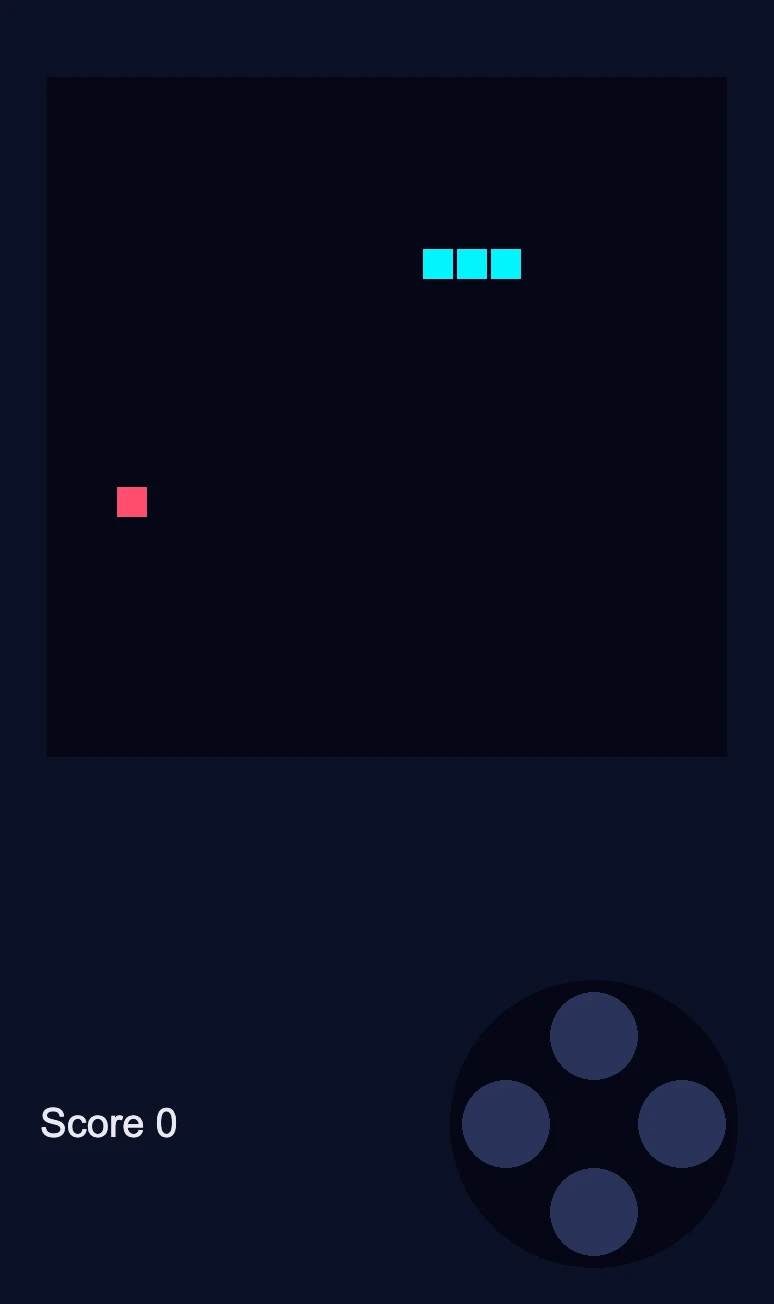
You should see "Score 0" at the bottom left. It counts up, and says "Game over" after a crash.
The whole file after this step
import { Application, Container, Graphics, Text } from 'pixi.js'; // The board is GRID cells wide and tall; the snake moves every STEP_MS.const GRID = 20;const STEP_MS = 185; const app = new Application();await app.init({ resizeTo: window, background: '#0b1026', resolution: Math.min(window.devicePixelRatio, 2), autoDensity: true, antialias: false, preference: 'webgl',});document.body.replaceChildren(app.canvas);app.canvas.style.display = 'block'; const board = new Graphics();const pad = new Container();const scoreText = new Text({ text: 'Score 0', style: { fill: '#e8eaf2', fontSize: 20 },});scoreText.anchor.set(0, 0.5);app.stage.addChild(board, pad, scoreText); let cell = 0;let snake = [ { x: 8, y: 10 }, { x: 7, y: 10 }, { x: 6, y: 10 },];let direction = { x: 1, y: 0 };let food = { x: 14, y: 10 };let score = 0;let alive = true;let waited = 0; function drawSquare(x: number, y: number, color: string) { board.rect(x * cell + 1, y * cell + 1, cell - 2, cell - 2).fill(color);} function draw() { board.clear(); board.rect(0, 0, cell * GRID, cell * GRID).fill('#050816'); drawSquare(food.x, food.y, '#ff4d6d'); for (const part of snake) { drawSquare(part.x, part.y, '#00f5ff'); }} // Fits the board, the buttons and the score to the screen.function layout() { cell = Math.floor((app.screen.width - 30) / GRID); board.x = (app.screen.width - cell * GRID) / 2; board.y = (app.screen.height - 180 - cell * GRID) / 2; pad.x = app.screen.width - 90; pad.y = app.screen.height - 90; scoreText.x = 20; scoreText.y = pad.y; draw();} function randomCell() { return { x: Math.floor(Math.random() * GRID), y: Math.floor(Math.random() * GRID), };} function onSnake(x: number, y: number) { return snake.some((part) => part.x === x && part.y === y);} // One move: a new head in front, and the tail drops off unless we just ate.function step() { const head = snake[0]; const next = { x: head.x + direction.x, y: head.y + direction.y }; const hitWall = next.x < 0 || next.y < 0 || next.x >= GRID || next.y >= GRID; if (hitWall || onSnake(next.x, next.y)) { alive = false; scoreText.text = `Game over: ${score}`; return; } snake.unshift(next); if (next.x === food.x && next.y === food.y) { score = score + 1; scoreText.text = `Score ${score}`; food = randomCell(); } else { snake.pop(); }} // A round button for one direction. It sits on that side of the pad.function addButton(moveX: number, moveY: number) { const button = new Graphics(); button.circle(moveX * 44, moveY * 44, 22).fill('#2a3358'); button.eventMode = 'static'; button.on('pointerdown', () => { direction = { x: moveX, y: moveY }; }); pad.addChild(button);} pad.addChild(new Graphics().circle(0, 0, 72).fill('#050816'));addButton(0, -1);addButton(0, 1);addButton(-1, 0);addButton(1, 0); // Runs every frame, but moves the snake only once STEP_MS has passed.app.ticker.add((ticker) => { if (!alive) { return; } waited = waited + ticker.deltaMS; if (waited >= STEP_MS) { waited = 0; step(); draw(); }}); app.renderer.on('resize', layout);layout();Step 15: Play again
Change the starting text:
const scoreText = new Text({ text: 'Tap the board', style: { fill: '#e8eaf2', fontSize: 20 },});Start with the game not running:
let cell = 0;let snake = [ { x: 8, y: 10 }, { x: 7, y: 10 }, { x: 6, y: 10 },];let direction = { x: 1, y: 0 };let food = { x: 14, y: 10 };let score = 0;let alive = false;let waited = 0;Add a function under onSnake:
function newGame() { snake = [ { x: 8, y: 10 }, { x: 7, y: 10 }, { x: 6, y: 10 }, ]; direction = { x: 1, y: 0 }; score = 0; alive = true; scoreText.text = 'Score 0'; food = randomCell(); draw();}Say how to play again, in step:
if (hitWall || onSnake(next.x, next.y)) { alive = false; scoreText.text = `Game over: ${score}\nTap the board`; return;}Add this under the buttons:
// A tap on the board starts a new game.board.eventMode = 'static';board.on('pointerdown', () => { if (!alive) { newGame(); }});newGameputs everything back to the start.- The board is a button now: a tap starts a game when none is running.
\nstarts a new line of words.
You should see "Tap the board". Tap it, play, crash, tap again.
The whole file after this step
import { Application, Container, Graphics, Text } from 'pixi.js'; // The board is GRID cells wide and tall; the snake moves every STEP_MS.const GRID = 20;const STEP_MS = 185; const app = new Application();await app.init({ resizeTo: window, background: '#0b1026', resolution: Math.min(window.devicePixelRatio, 2), autoDensity: true, antialias: false, preference: 'webgl',});document.body.replaceChildren(app.canvas);app.canvas.style.display = 'block'; const board = new Graphics();const pad = new Container();const scoreText = new Text({ text: 'Tap the board', style: { fill: '#e8eaf2', fontSize: 20 },});scoreText.anchor.set(0, 0.5);app.stage.addChild(board, pad, scoreText); let cell = 0;let snake = [ { x: 8, y: 10 }, { x: 7, y: 10 }, { x: 6, y: 10 },];let direction = { x: 1, y: 0 };let food = { x: 14, y: 10 };let score = 0;let alive = false;let waited = 0; function drawSquare(x: number, y: number, color: string) { board.rect(x * cell + 1, y * cell + 1, cell - 2, cell - 2).fill(color);} function draw() { board.clear(); board.rect(0, 0, cell * GRID, cell * GRID).fill('#050816'); drawSquare(food.x, food.y, '#ff4d6d'); for (const part of snake) { drawSquare(part.x, part.y, '#00f5ff'); }} // Fits the board, the buttons and the score to the screen.function layout() { cell = Math.floor((app.screen.width - 30) / GRID); board.x = (app.screen.width - cell * GRID) / 2; board.y = (app.screen.height - 180 - cell * GRID) / 2; pad.x = app.screen.width - 90; pad.y = app.screen.height - 90; scoreText.x = 20; scoreText.y = pad.y; draw();} function randomCell() { return { x: Math.floor(Math.random() * GRID), y: Math.floor(Math.random() * GRID), };} function onSnake(x: number, y: number) { return snake.some((part) => part.x === x && part.y === y);} function newGame() { snake = [ { x: 8, y: 10 }, { x: 7, y: 10 }, { x: 6, y: 10 }, ]; direction = { x: 1, y: 0 }; score = 0; alive = true; scoreText.text = 'Score 0'; food = randomCell(); draw();} // One move: a new head in front, and the tail drops off unless we just ate.function step() { const head = snake[0]; const next = { x: head.x + direction.x, y: head.y + direction.y }; const hitWall = next.x < 0 || next.y < 0 || next.x >= GRID || next.y >= GRID; if (hitWall || onSnake(next.x, next.y)) { alive = false; scoreText.text = `Game over: ${score}\nTap the board`; return; } snake.unshift(next); if (next.x === food.x && next.y === food.y) { score = score + 1; scoreText.text = `Score ${score}`; food = randomCell(); } else { snake.pop(); }} // A round button for one direction. It sits on that side of the pad.function addButton(moveX: number, moveY: number) { const button = new Graphics(); button.circle(moveX * 44, moveY * 44, 22).fill('#2a3358'); button.eventMode = 'static'; button.on('pointerdown', () => { direction = { x: moveX, y: moveY }; }); pad.addChild(button);} pad.addChild(new Graphics().circle(0, 0, 72).fill('#050816'));addButton(0, -1);addButton(0, 1);addButton(-1, 0);addButton(1, 0); // A tap on the board starts a new game.board.eventMode = 'static';board.on('pointerdown', () => { if (!alive) { newGame(); }}); // Runs every frame, but moves the snake only once STEP_MS has passed.app.ticker.add((ticker) => { if (!alive) { return; } waited = waited + ticker.deltaMS; if (waited >= STEP_MS) { waited = 0; step(); draw(); }}); app.renderer.on('resize', layout);layout();Step 16: Finishing touches
The snake can turn straight back into itself. Add a variable:
let cell = 0;let snake = [ { x: 8, y: 10 }, { x: 7, y: 10 }, { x: 6, y: 10 },];let direction = { x: 1, y: 0 };let nextDirection = direction;let food = { x: 14, y: 10 };let score = 0;let alive = false;let waited = 0;Add a function above addButton, and use it in the button:
// The snake cannot turn straight back into itself.function turn(x: number, y: number) { const backwards = x === -direction.x && y === -direction.y; if (!backwards) { nextDirection = { x: x, y: y }; }} // A round button for one direction. It sits on that side of the pad.function addButton(moveX: number, moveY: number) { const button = new Graphics(); button.circle(moveX * 44, moveY * 44, 22).fill('#2a3358'); button.eventMode = 'static'; button.on('pointerdown', () => { turn(moveX, moveY); }); pad.addChild(button);}Take the turn at the start of every move, and reset it in a new game:
function newGame() { snake = [ { x: 8, y: 10 }, { x: 7, y: 10 }, { x: 6, y: 10 }, ]; direction = { x: 1, y: 0 }; nextDirection = direction; score = 0; alive = true; scoreText.text = 'Score 0'; placeFood(); draw();} // One move: a new head in front, and the tail drops off unless we just ate.function step() { direction = nextDirection; const head = snake[0]; const next = { x: head.x + direction.x, y: head.y + direction.y }; const hitWall = next.x < 0 || next.y < 0 || next.x >= GRID || next.y >= GRID; if (hitWall || onSnake(next.x, next.y)) { alive = false; scoreText.text = `Game over: ${score}\nTap the board`; return; } snake.unshift(next); if (next.x === food.x && next.y === food.y) { score = score + 1; scoreText.text = `Score ${score}`; placeFood(); } else { snake.pop(); }}turn says no to a turn that points backwards. It keeps the others in nextDirection until the snake takes its next step.
Food can land on the snake. Add placeFood under onSnake:
// Food never lands on the snake: pick again until the cell is free.function placeFood() { food = randomCell(); while (onSnake(food.x, food.y)) { food = randomCell(); }}while does something again and again, as long as it is true: pick a new cell until it is a free one.
The game runs when nobody is looking. Add this at the end of the file:
// The feed loads a tik before it is on screen: run only while it is visible.if (!tik.visible()) { app.stop();}tik.on('visible', () => app.start());tik.on('hidden', () => app.stop());tik is Codetik's helper. Every tik has it. The game stops while it is off the screen.
You should see the finished game. You made Snake!
Play it on your phone
Click the terminal, press Ctrl+C and run:
$ codetik publishIt asks two questions. For the first, press Return: Draft is already picked. For the second, pick a category for your game with the arrow keys and press Return. Open the Codetik app and find your game under Drafts.
To share it with everyone, your game needs a logo: a square picture, 512 pixels on each side, saved as tik.webp in the snake folder. Any free image converter can save a picture as WebP. Then run codetik publish --live.
Make it yours
- Colours and size. Change the colours in
draw, orGRIDandSTEP_MSat the top. - Speed up. Make the snake faster every time it eats.
- Wrap around. Let the snake leave one side of the board and come back on the other. Look at
nextinstep. - Best score. Remember your best with
localStorage.setItemandlocalStorage.getItem, and show it next to the score. - A second food. A gold square that is worth more and moves away after a while.
Want to play against other people? Build a realtime leaderboard adds a top ten.
The whole program
import { Application, Container, Graphics, Text } from 'pixi.js'; // The board is GRID cells wide and tall; the snake moves every STEP_MS.const GRID = 20;const STEP_MS = 185; const app = new Application();await app.init({ resizeTo: window, background: '#0b1026', resolution: Math.min(window.devicePixelRatio, 2), autoDensity: true, antialias: false, preference: 'webgl',});document.body.replaceChildren(app.canvas);app.canvas.style.display = 'block'; const board = new Graphics();const pad = new Container();const scoreText = new Text({ text: 'Tap the board', style: { fill: '#e8eaf2', fontSize: 20 },});scoreText.anchor.set(0, 0.5);app.stage.addChild(board, pad, scoreText); let cell = 0;let snake = [ { x: 8, y: 10 }, { x: 7, y: 10 }, { x: 6, y: 10 },];let direction = { x: 1, y: 0 };let nextDirection = direction;let food = { x: 14, y: 10 };let score = 0;let alive = false;let waited = 0; function drawSquare(x: number, y: number, color: string) { board.rect(x * cell + 1, y * cell + 1, cell - 2, cell - 2).fill(color);} function draw() { board.clear(); board.rect(0, 0, cell * GRID, cell * GRID).fill('#050816'); drawSquare(food.x, food.y, '#ff4d6d'); for (const part of snake) { drawSquare(part.x, part.y, '#00f5ff'); }} // Fits the board, the buttons and the score to the screen.function layout() { cell = Math.floor((app.screen.width - 30) / GRID); board.x = (app.screen.width - cell * GRID) / 2; board.y = (app.screen.height - 180 - cell * GRID) / 2; pad.x = app.screen.width - 90; pad.y = app.screen.height - 90; scoreText.x = 20; scoreText.y = pad.y; draw();} function randomCell() { return { x: Math.floor(Math.random() * GRID), y: Math.floor(Math.random() * GRID), };} function onSnake(x: number, y: number) { return snake.some((part) => part.x === x && part.y === y);} // Food never lands on the snake: pick again until the cell is free.function placeFood() { food = randomCell(); while (onSnake(food.x, food.y)) { food = randomCell(); }} function newGame() { snake = [ { x: 8, y: 10 }, { x: 7, y: 10 }, { x: 6, y: 10 }, ]; direction = { x: 1, y: 0 }; nextDirection = direction; score = 0; alive = true; scoreText.text = 'Score 0'; placeFood(); draw();} // One move: a new head in front, and the tail drops off unless we just ate.function step() { direction = nextDirection; const head = snake[0]; const next = { x: head.x + direction.x, y: head.y + direction.y }; const hitWall = next.x < 0 || next.y < 0 || next.x >= GRID || next.y >= GRID; if (hitWall || onSnake(next.x, next.y)) { alive = false; scoreText.text = `Game over: ${score}\nTap the board`; return; } snake.unshift(next); if (next.x === food.x && next.y === food.y) { score = score + 1; scoreText.text = `Score ${score}`; placeFood(); } else { snake.pop(); }} // The snake cannot turn straight back into itself.function turn(x: number, y: number) { const backwards = x === -direction.x && y === -direction.y; if (!backwards) { nextDirection = { x: x, y: y }; }} // A round button for one direction. It sits on that side of the pad.function addButton(moveX: number, moveY: number) { const button = new Graphics(); button.circle(moveX * 44, moveY * 44, 22).fill('#2a3358'); button.eventMode = 'static'; button.on('pointerdown', () => { turn(moveX, moveY); }); pad.addChild(button);} pad.addChild(new Graphics().circle(0, 0, 72).fill('#050816'));addButton(0, -1);addButton(0, 1);addButton(-1, 0);addButton(1, 0); // A tap on the board starts a new game.board.eventMode = 'static';board.on('pointerdown', () => { if (!alive) { newGame(); }}); // Runs every frame, but moves the snake only once STEP_MS has passed.app.ticker.add((ticker) => { if (!alive) { return; } waited = waited + ticker.deltaMS; if (waited >= STEP_MS) { waited = 0; step(); draw(); }}); app.renderer.on('resize', layout);layout(); // The feed loads a tik before it is on screen: run only while it is visible.if (!tik.visible()) { app.stop();}tik.on('visible', () => app.start());tik.on('hidden', () => app.stop());